
How to Remove or Replace Your Samsung Galaxy XR Headband
If your Samsung Galaxy XR headband is damaged or certain functions like the proximity sensor or speakers aren’t working, it might be time to repair or replace it. The proximity sensor is responsible for turning the screen dark during use, so a faulty headband can seriously affect your VR experience. Today, I’ll walk you through the full process of removing and replacing your headband safely.
Tools You’ll Need
Before you start, make sure you have the following tools ready:

Jimmy tool
Guitar pick
Nylon spudger
Step 1: Disconnect the Battery
As with any electronics repair, safety first. Start by disconnecting the battery connector to prevent any short circuits.
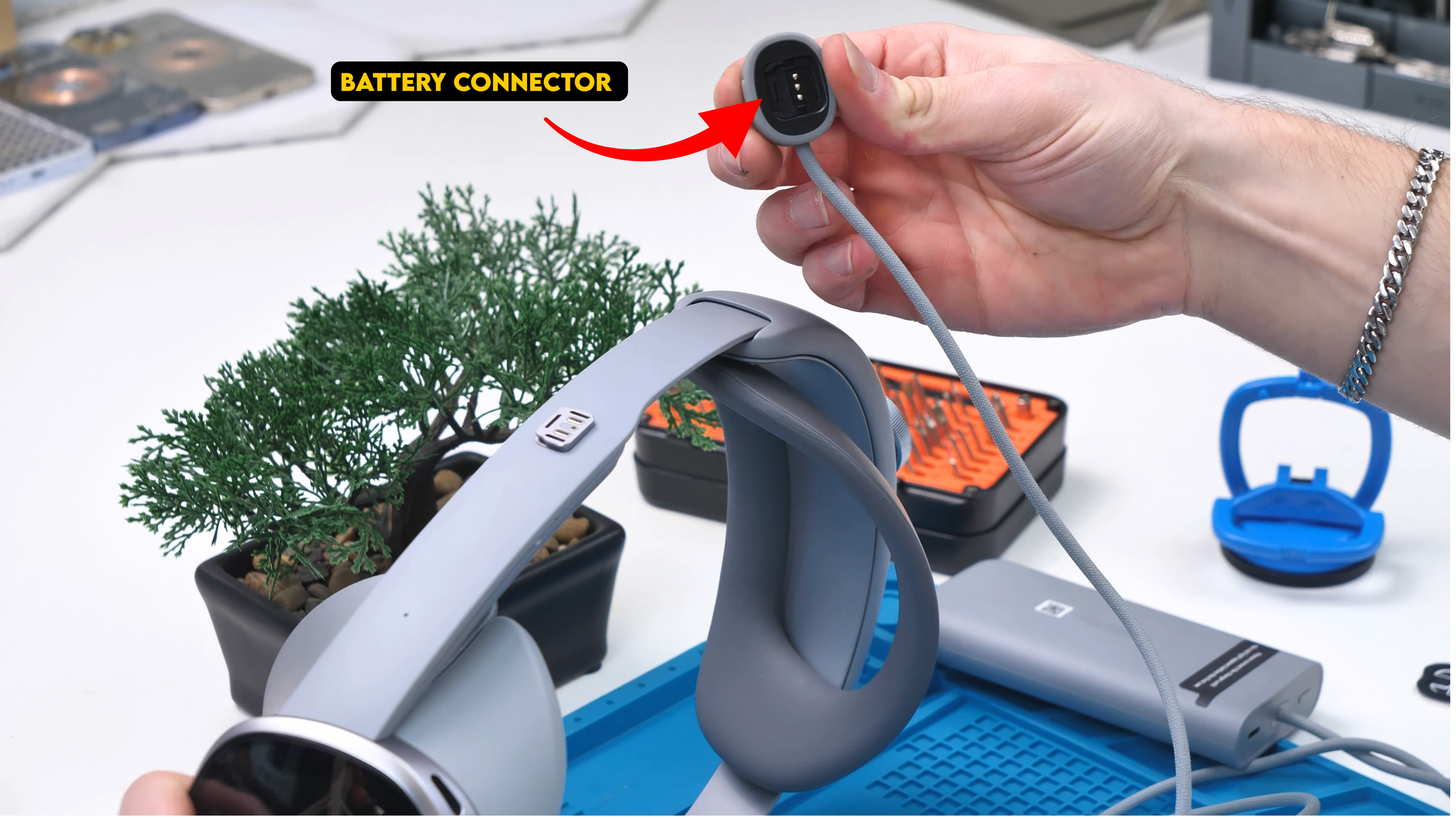
Set the connector aside once it’s disconnected.
Step 2: Prepare to Open the Headset
Removing the headband requires opening the headset.
| Keep in Mind |
|---|
| 1. The screen protector is plastic and scratches very easily. Proceed with caution! |
| 2. There’s limited adhesive, but lots of stubborn clips holding the parts together. |

Start by gently prying around the top of the headset with your Jimmy tool to create a small gap. If needed, apply a small amount of heat, but in most cases, it isn’t necessary.


Next, slide a guitar pick into the gap. The front piece is glass, so apply gentle but firm pressure. Slide the pick across the top until you hear the clips disengage. It might sound like something is breaking, but it’s just the clips releasing.

| Pro Tip: After successfully removing the front panel, place it with the camera side facing down to prevent dust or debris from getting onto the lenses. |
Step 3: Remove Internal Screws
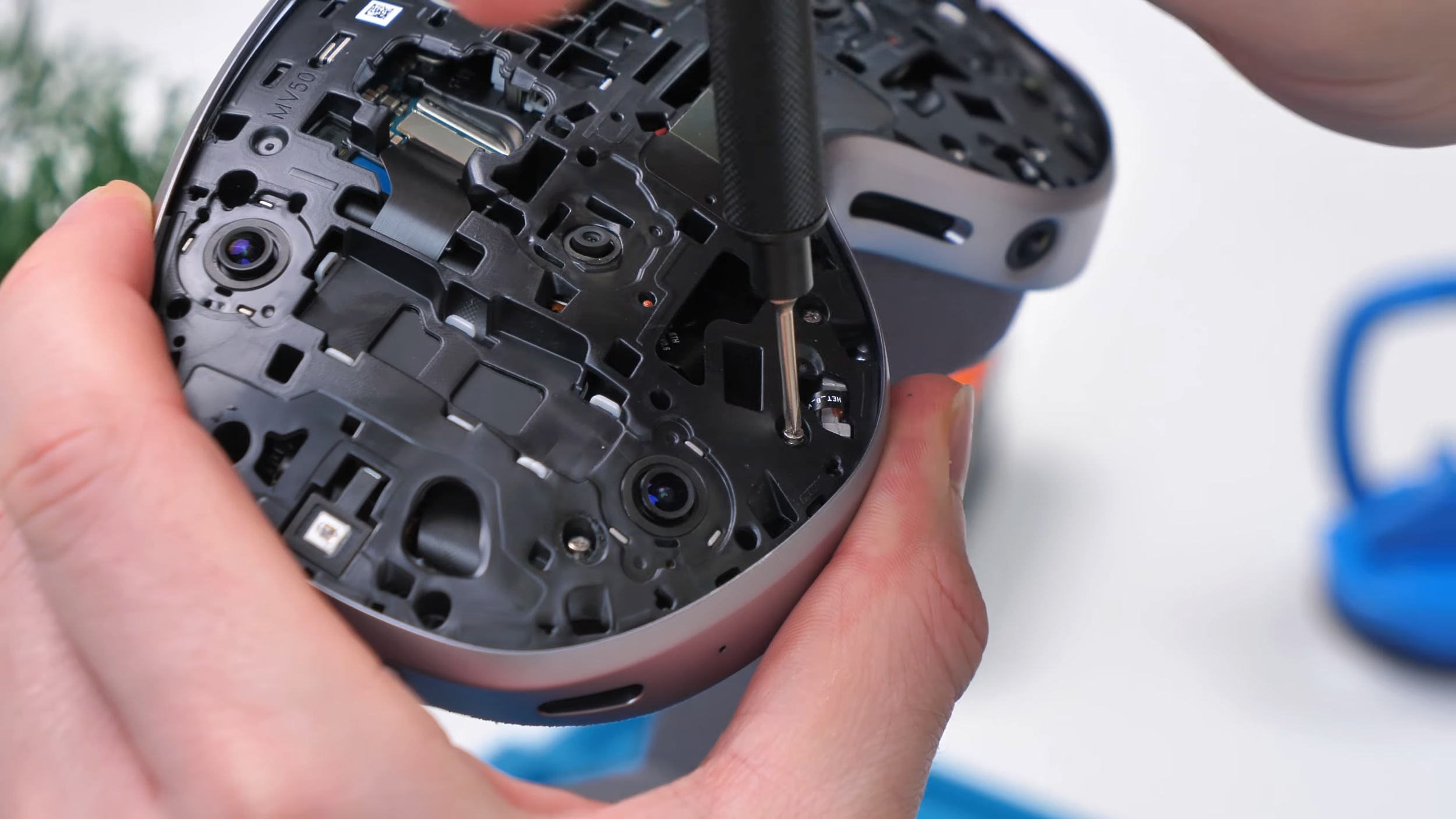
Once the panel is off, you’ll see a bunch of Phillips screws. Most are the same size, but keep them organized exactly as you found them. Missing a screw or putting one back in the wrong spot can cause issues later.
Some screws may be stubborn, don’t force them unnecessarily. Note their location and remove them carefully.
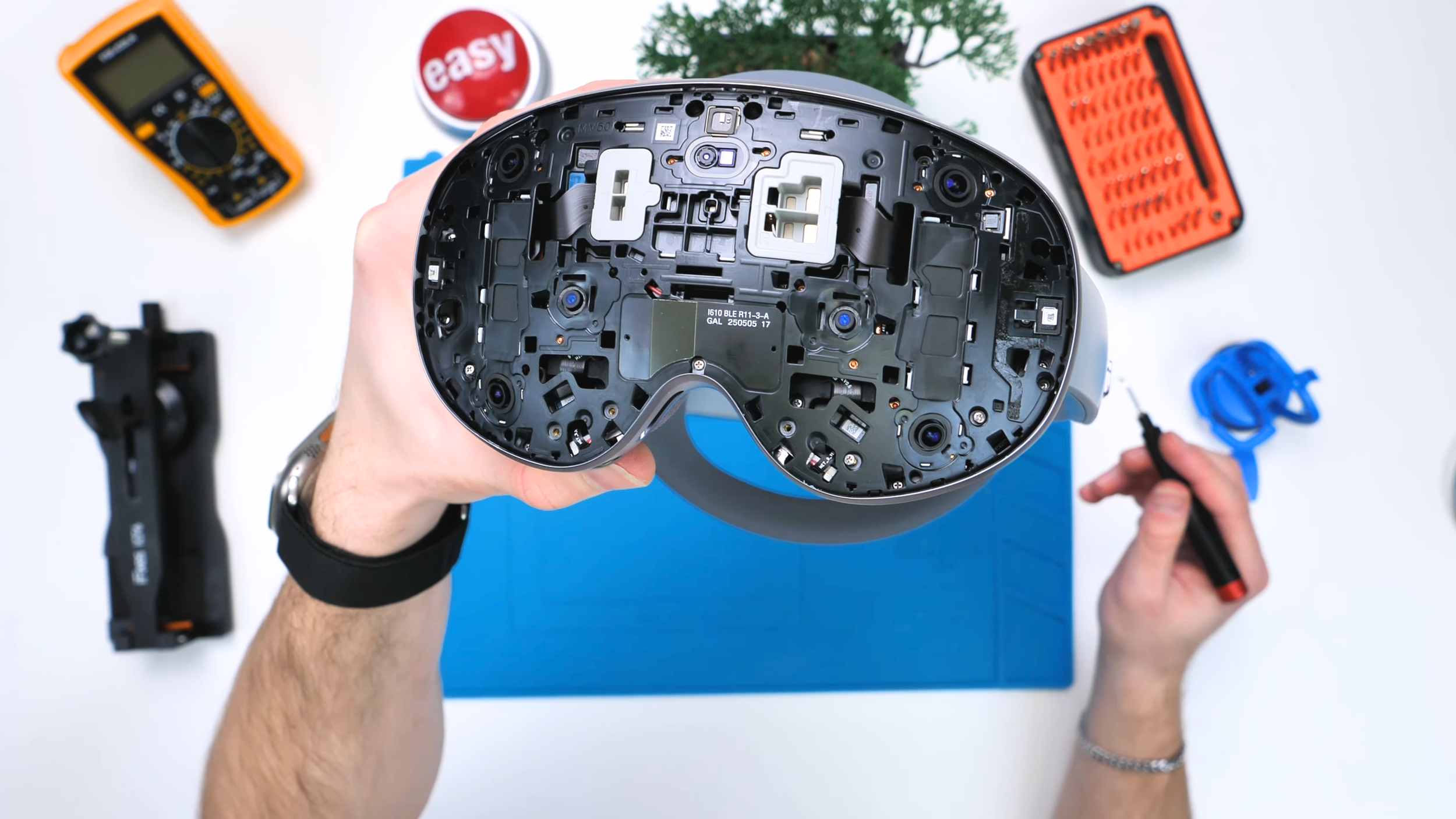
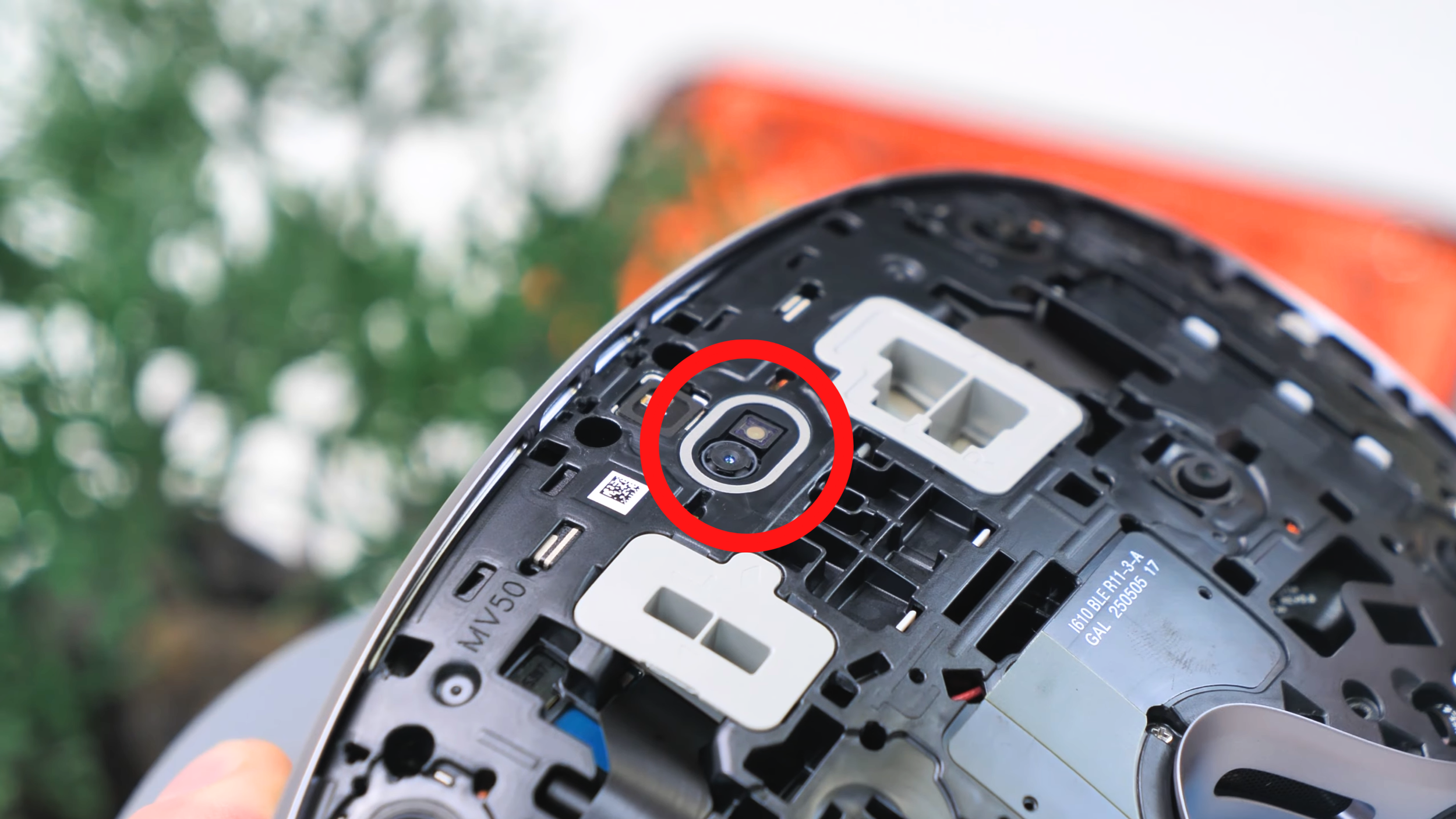

Tip: Avoid touching the cameras directly. Wearing gloves is highly recommended because fingerprints on the lenses are difficult to remove.
Step 4: Disconnect Connectors
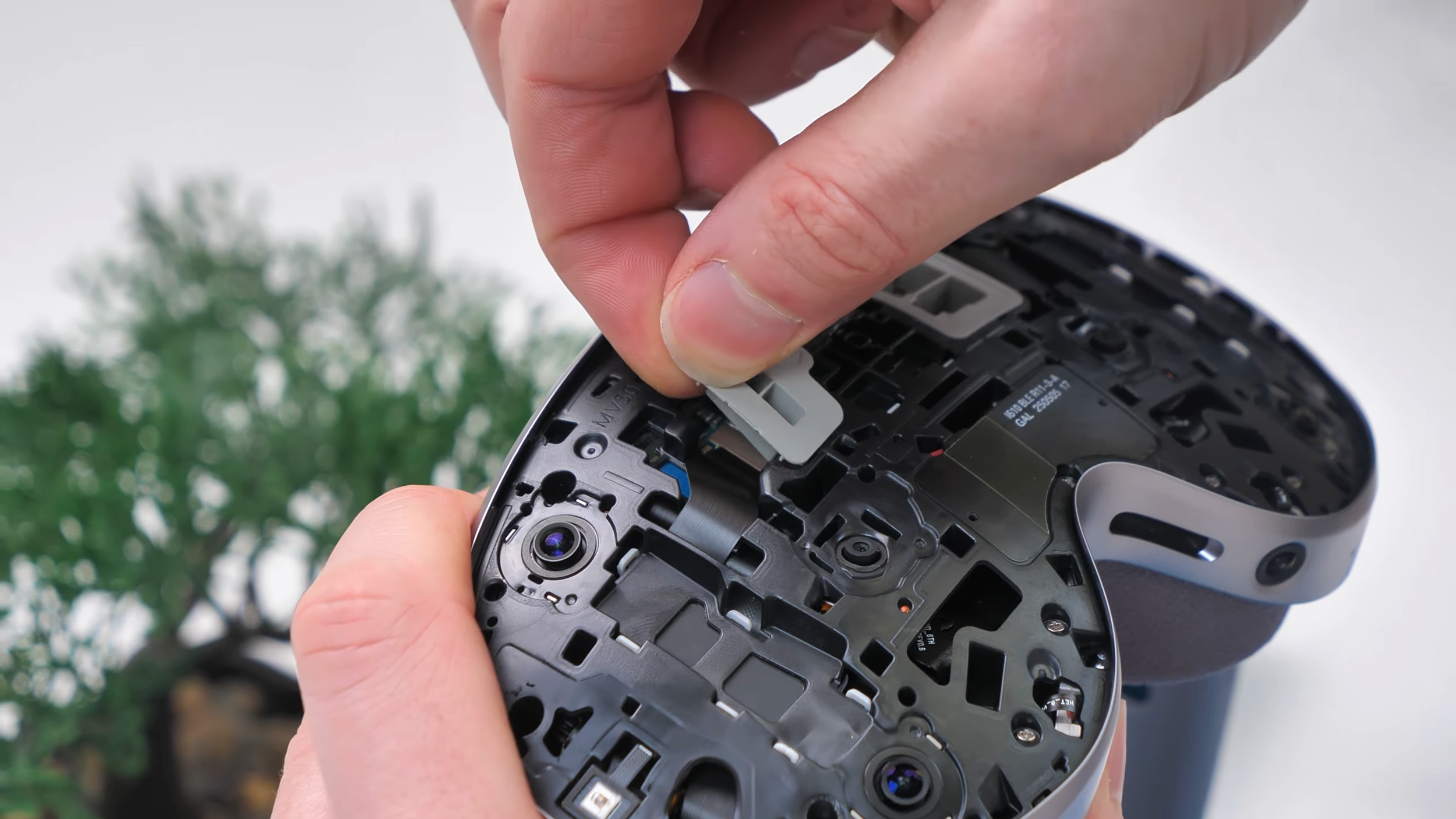
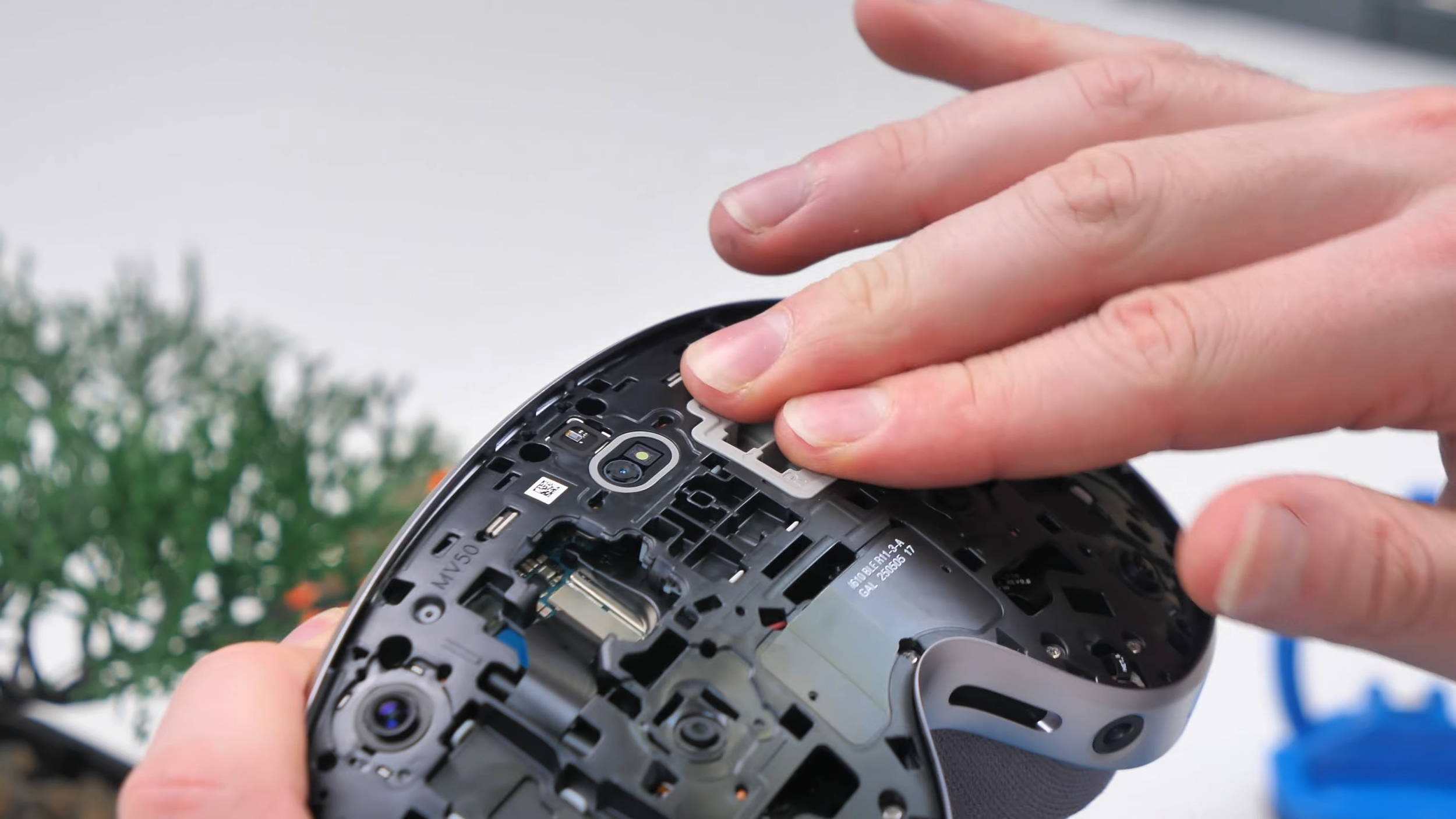
After removing screws, gently pull off the next components. Several connectors will need to be disconnected:
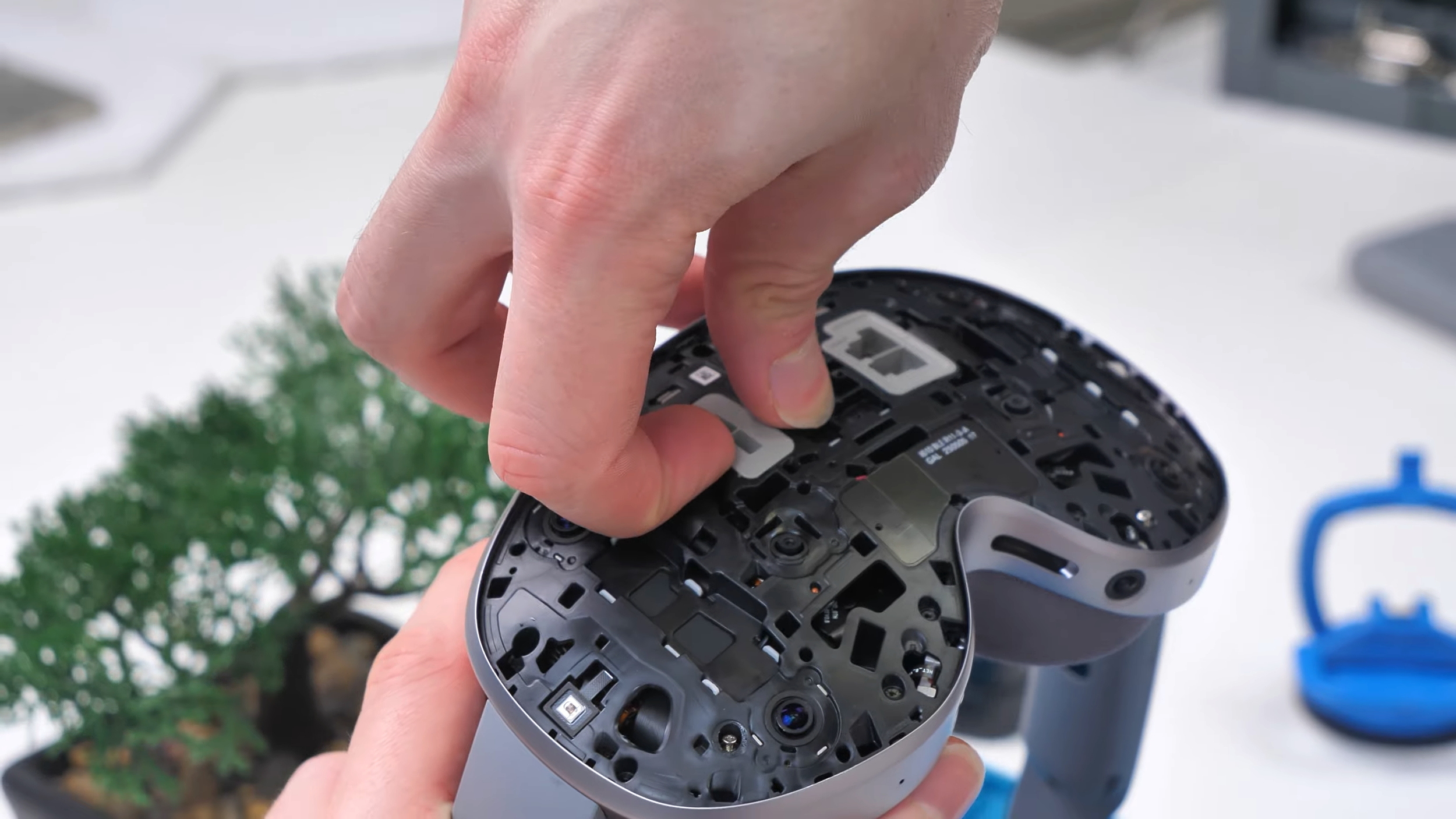
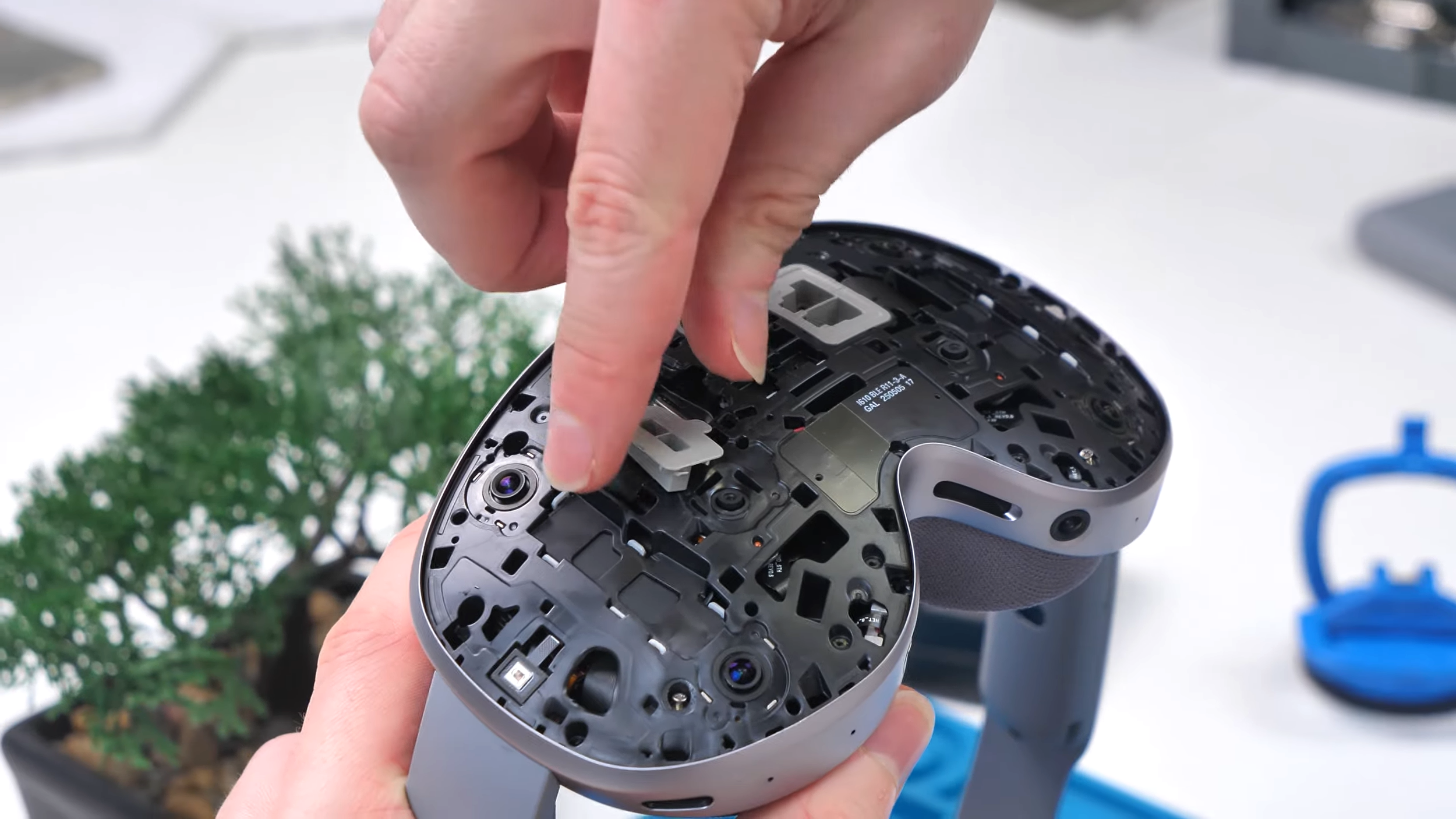

Use your fingernail or a nylon spudger.
Disconnect each cable carefully to avoid damaging the flex connectors.
Pull back cables gently before proceeding to unscrew parts beneath them.
Step 5: Removing the Headband Screws
The headband is secured with three screws on each side, but you must disconnect several flex cables before accessing them.


Disconnect the necessary cables using a spudger.
Pull back carefully; heat or isopropyl alcohol can help, but isn’t required.
Unscrew the three screws on each side.
You now have the headband free to wiggle out. Avoid pulling hard; as long as connectors are disconnected, it should come out smoothly.
Step 6: Reinstalling the Headband
Before installing a new headband:
Remove any screws from the replacement headband, they can make installation more difficult.
To reinstall:
Align the headband with the headset.
Carefully slide it into place, ensuring connectors aren’t pinched or damaged.
Screw it back in, taking your time as it can be awkward to secure and do the same on the other side.
Reconnect all flex cables, making sure each connector clicks into place without applying excessive pressure.
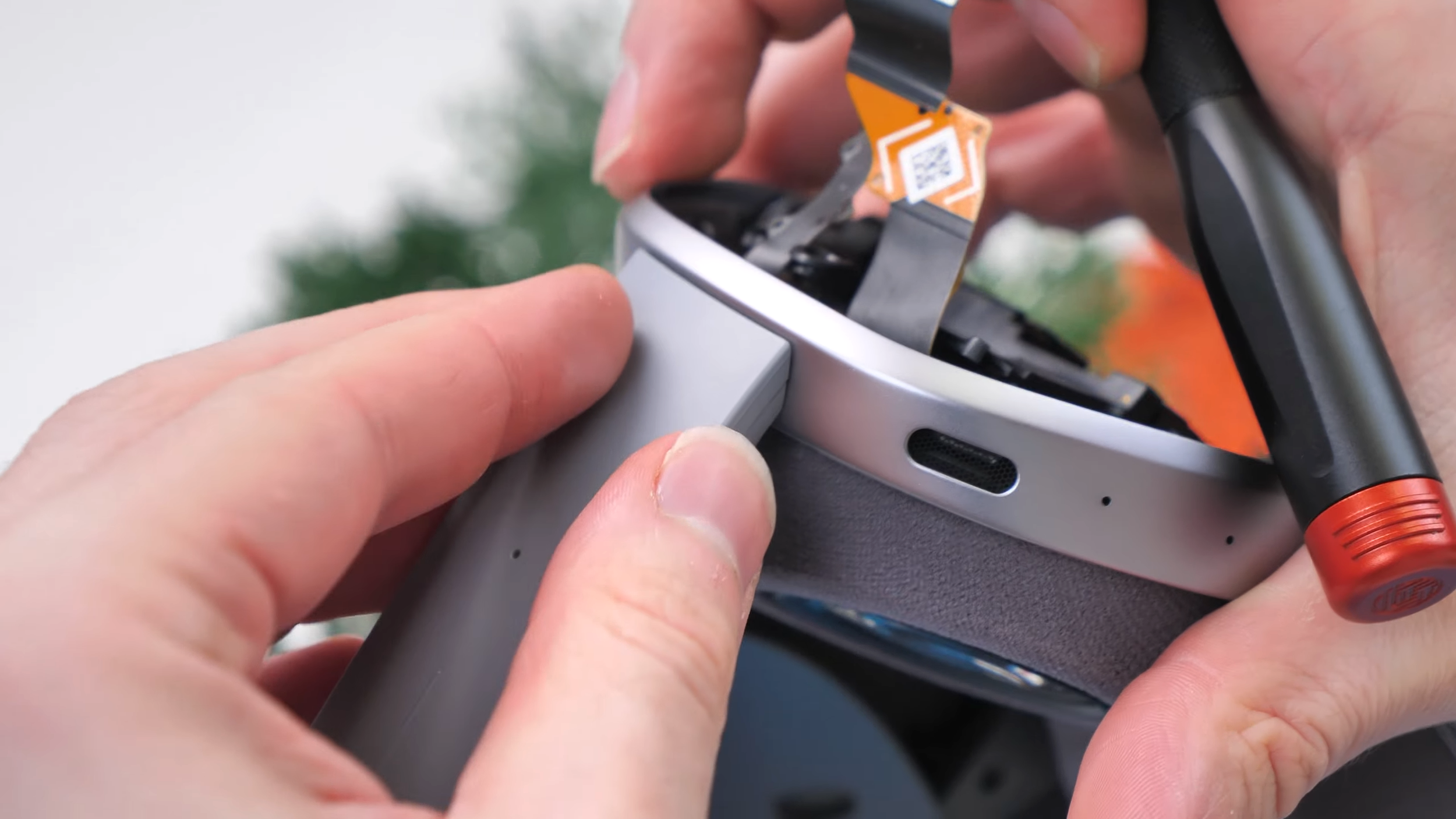
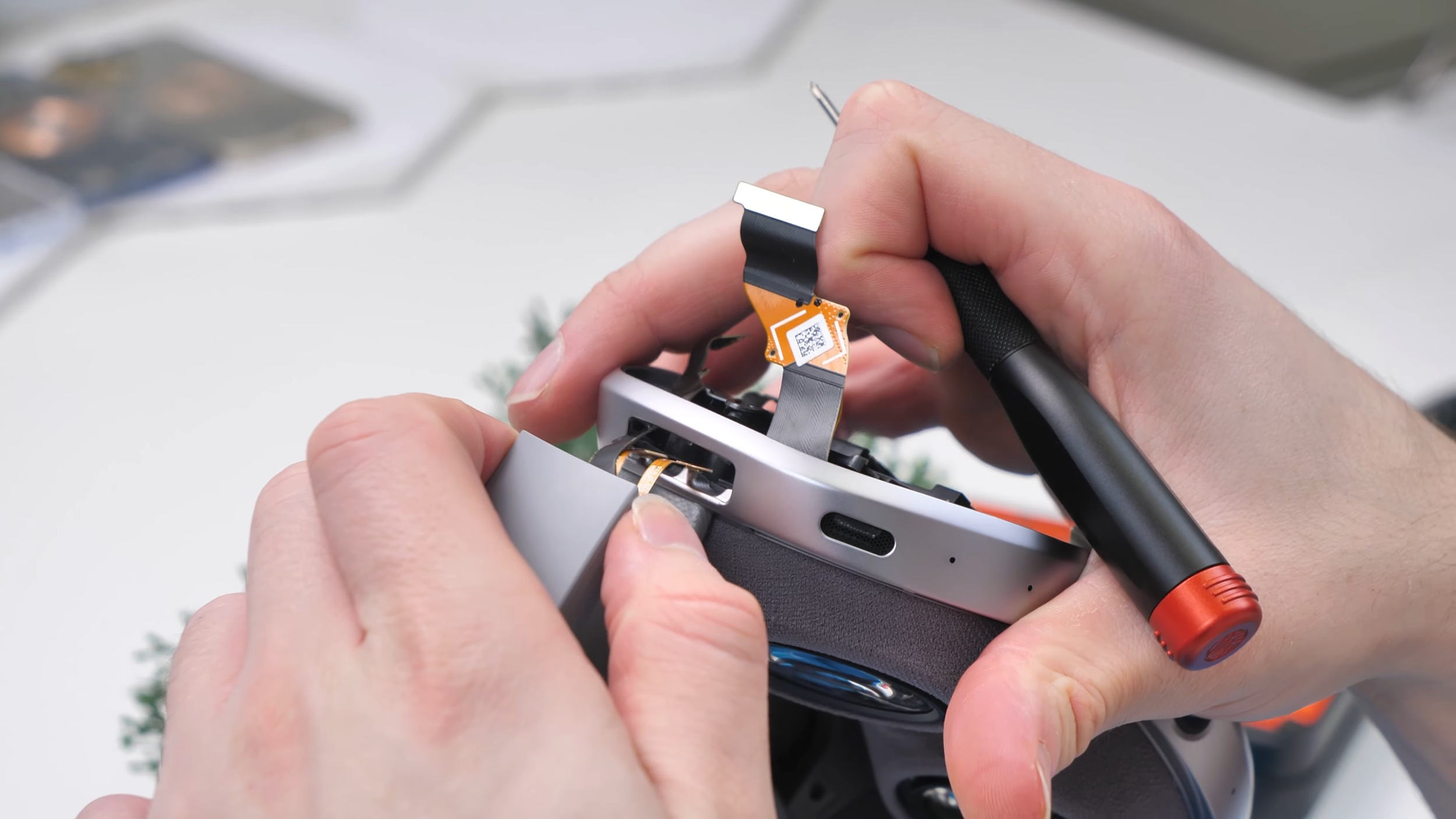

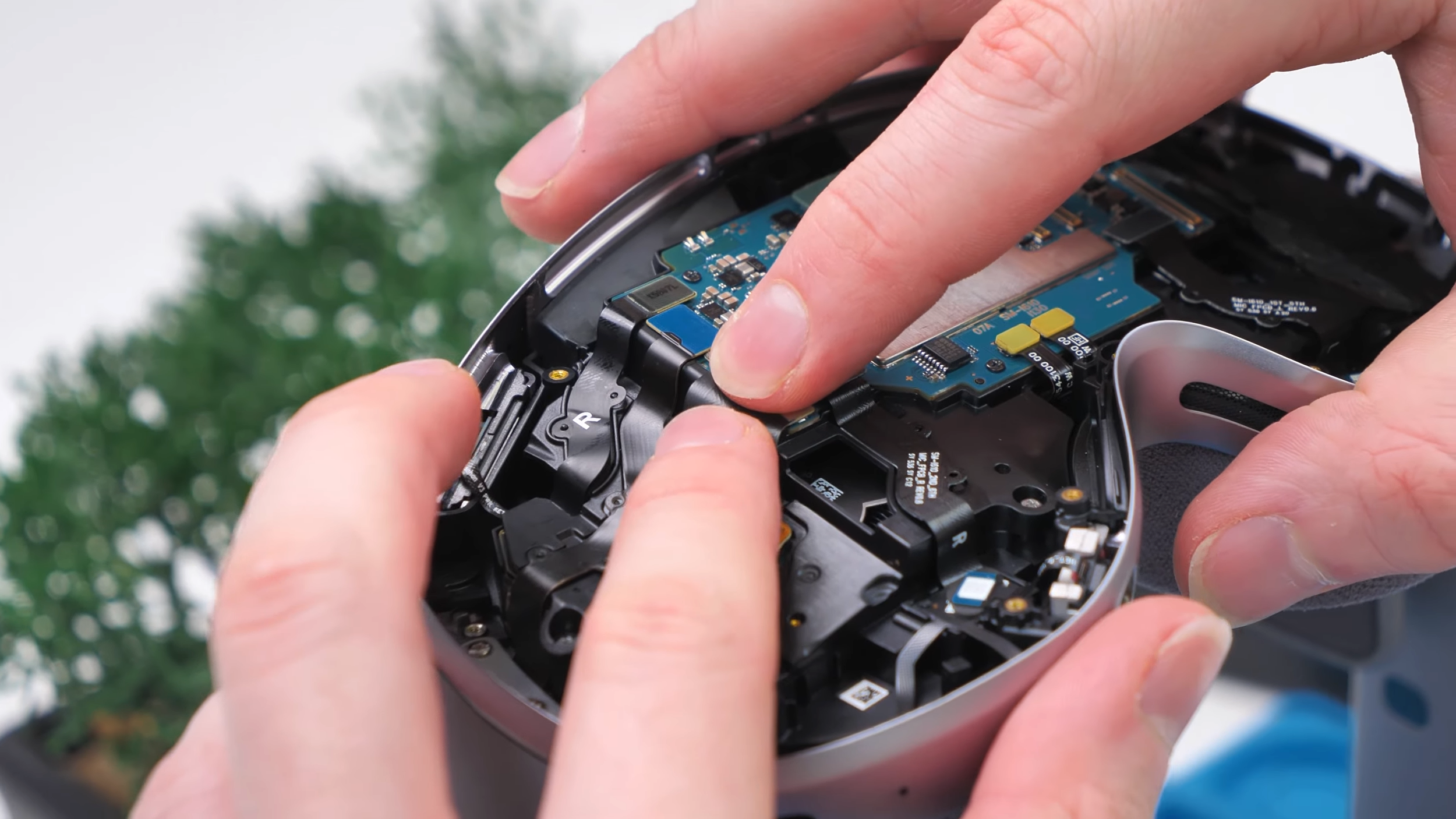
Tip: If unsure, you can remove the motherboard and frame to make this step easier, but it’s not necessary.
Step 7: Reconnect Everything
Reconnect all internal components and connectors one by one. Press lightly to ensure everything sits flush and adheres slightly if necessary.
Before reassembling completely:
Reinstall the battery temporarily and test functionality.
Ensure the headset powers on and all sensors and speakers work.
Step 8: Final Assembly
Once everything is confirmed working:
Screw in any remaining screws, keeping them organized as originally placed.
Clip the front panel back into place carefully, avoid touching the cameras.
Apply gentle pressure to secure it fully.




Once reassembled, perform a final test to ensure the device boots properly and all functions are working.
Final Thoughts
Replacing the Samsung Galaxy XR headband might seem intimidating, but with patience and the right tools, it’s totally doable. Take your time, keep screws organized, and handle connectors carefully.
If you follow these steps, your headset should be working like new, and you’ll be ready to jump back into VR adventures.
And who knows? With all the tinkering you’re doing, maybe the next mod will make your XR headset feel like a futuristic space helmet.
See you in the next article!
