
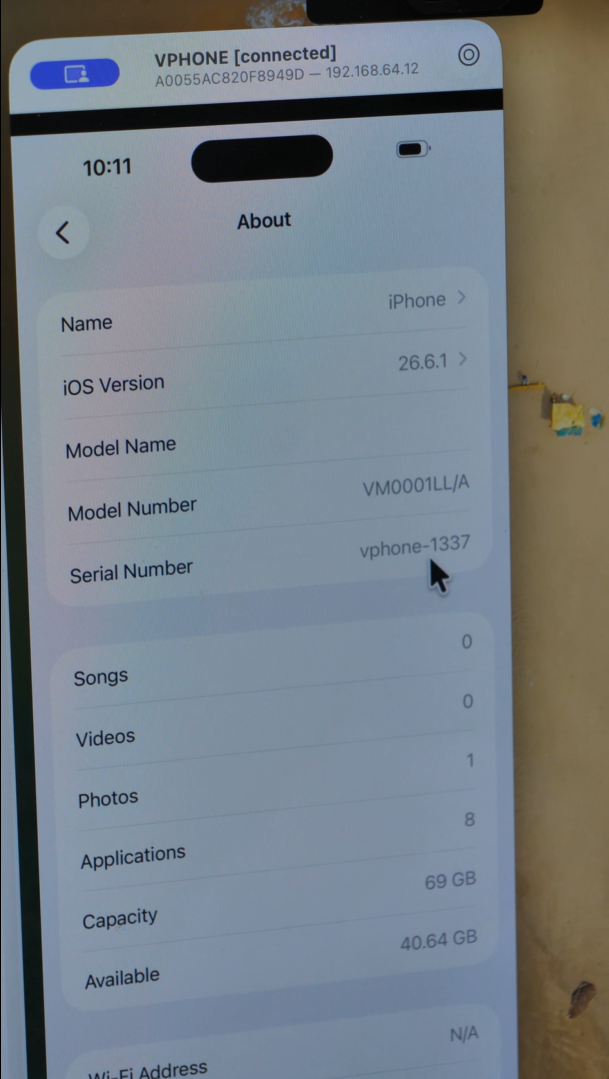
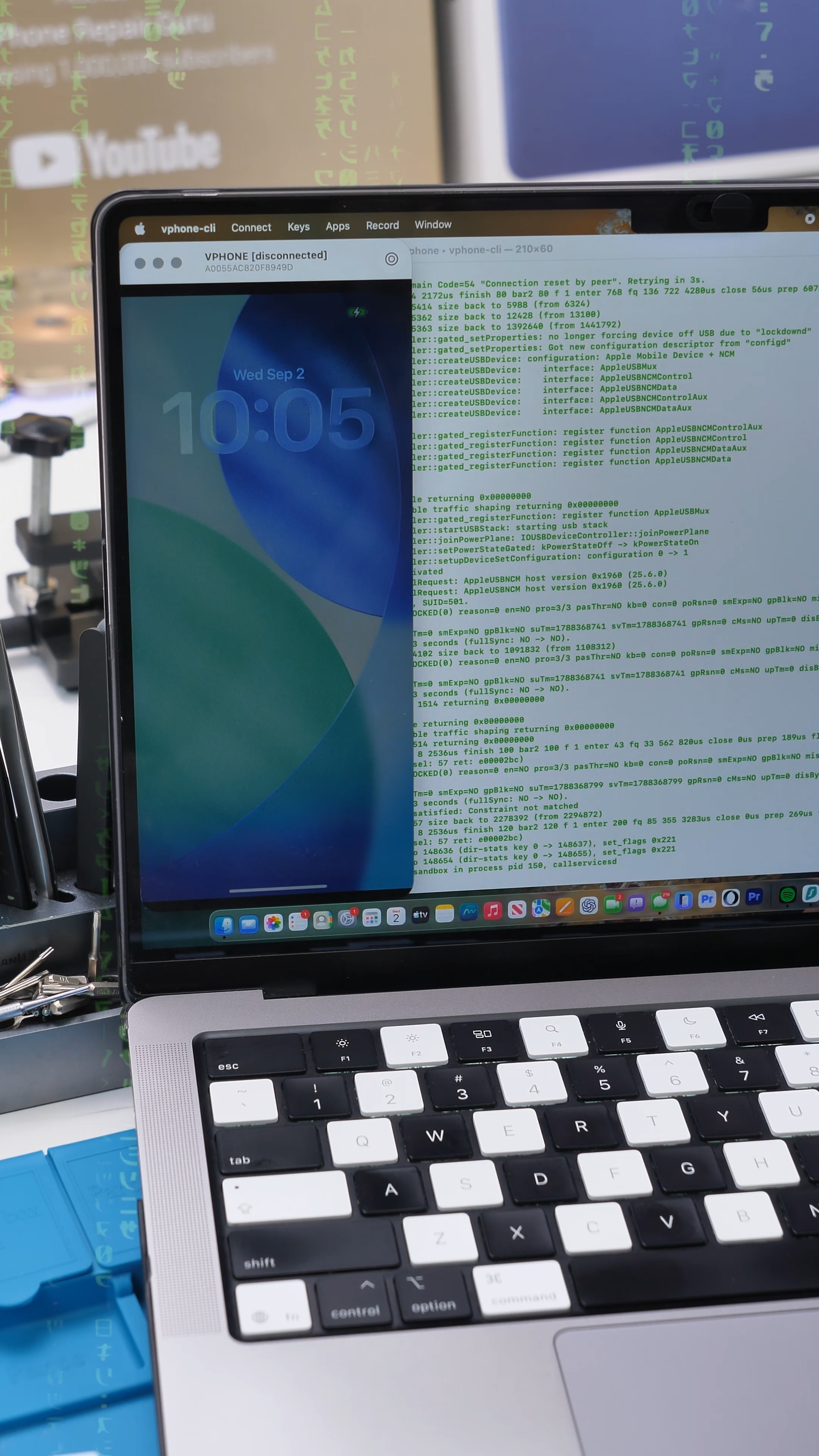
I have iOS running on my Mac, but there’s no physical iPhone behind it. No phone connected, no screen being mirrored, and this isn’t the usual simulator developers open through Xcode.
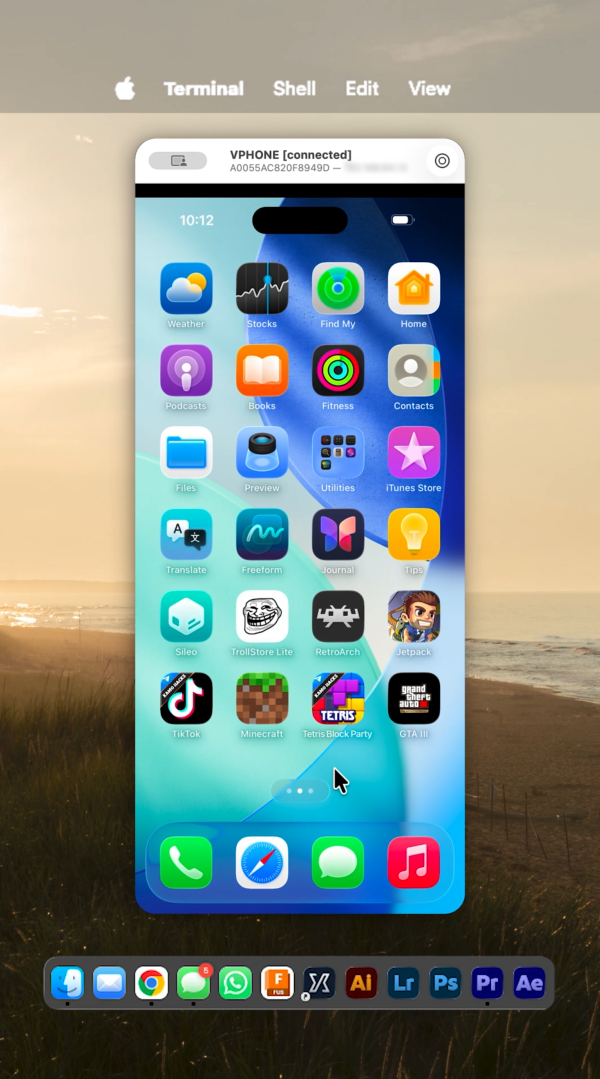
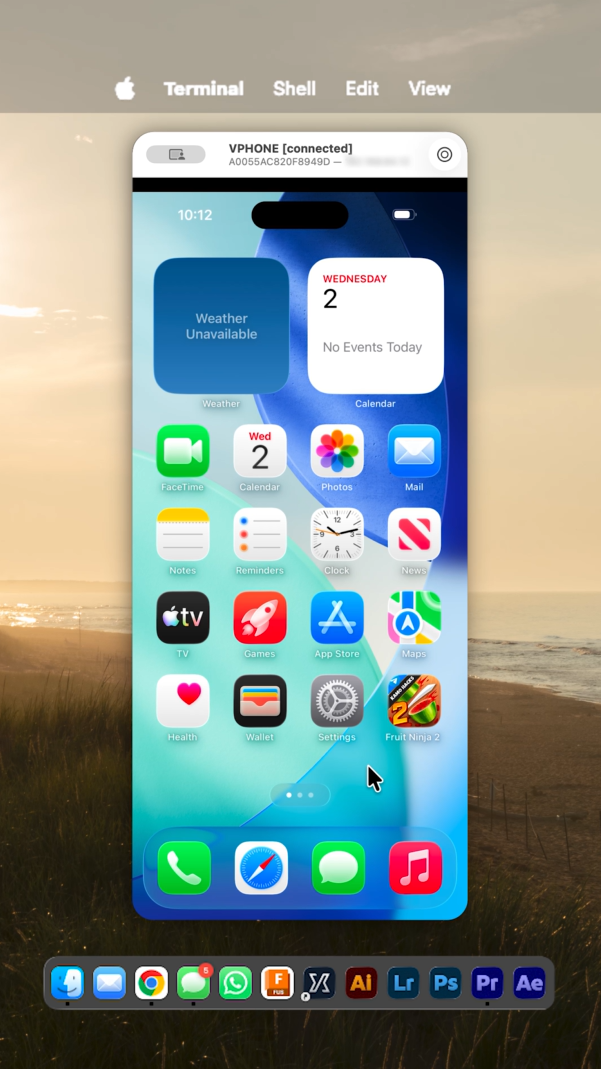
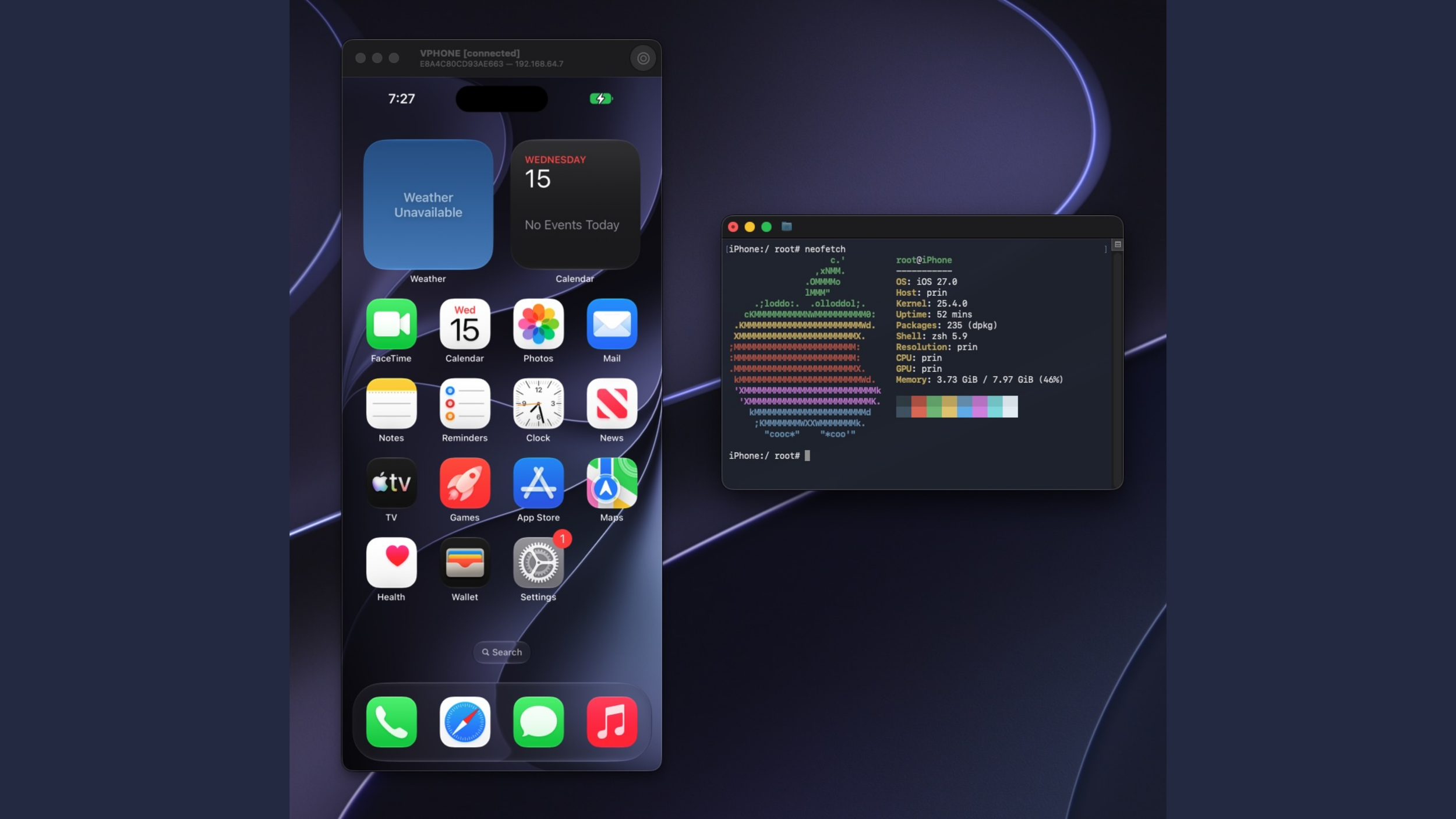
The project is called vphone-cli, but “virtual phone” describes it pretty well. It creates an independent virtual iPhone with its own operating system, storage, and device identity. Getting it running is interesting enough. What makes this experiment worth a closer look is how much access you can have once you’re inside, although that freedom comes with a catch.
Meet the Virtual Phone
We’re calling it VPhone, short for virtual phone. The open-source project behind it, vphone-cli, boots iOS as a separate virtual machine through Apple’s Virtualization framework.
The unexpected part is where its foundation comes from. Apple publicly released a Virtual Research Environment for Private Cloud Compute, allowing researchers to investigate the software behind its cloud AI systems. VPhone builds on that research infrastructure to boot a virtual iPhone.
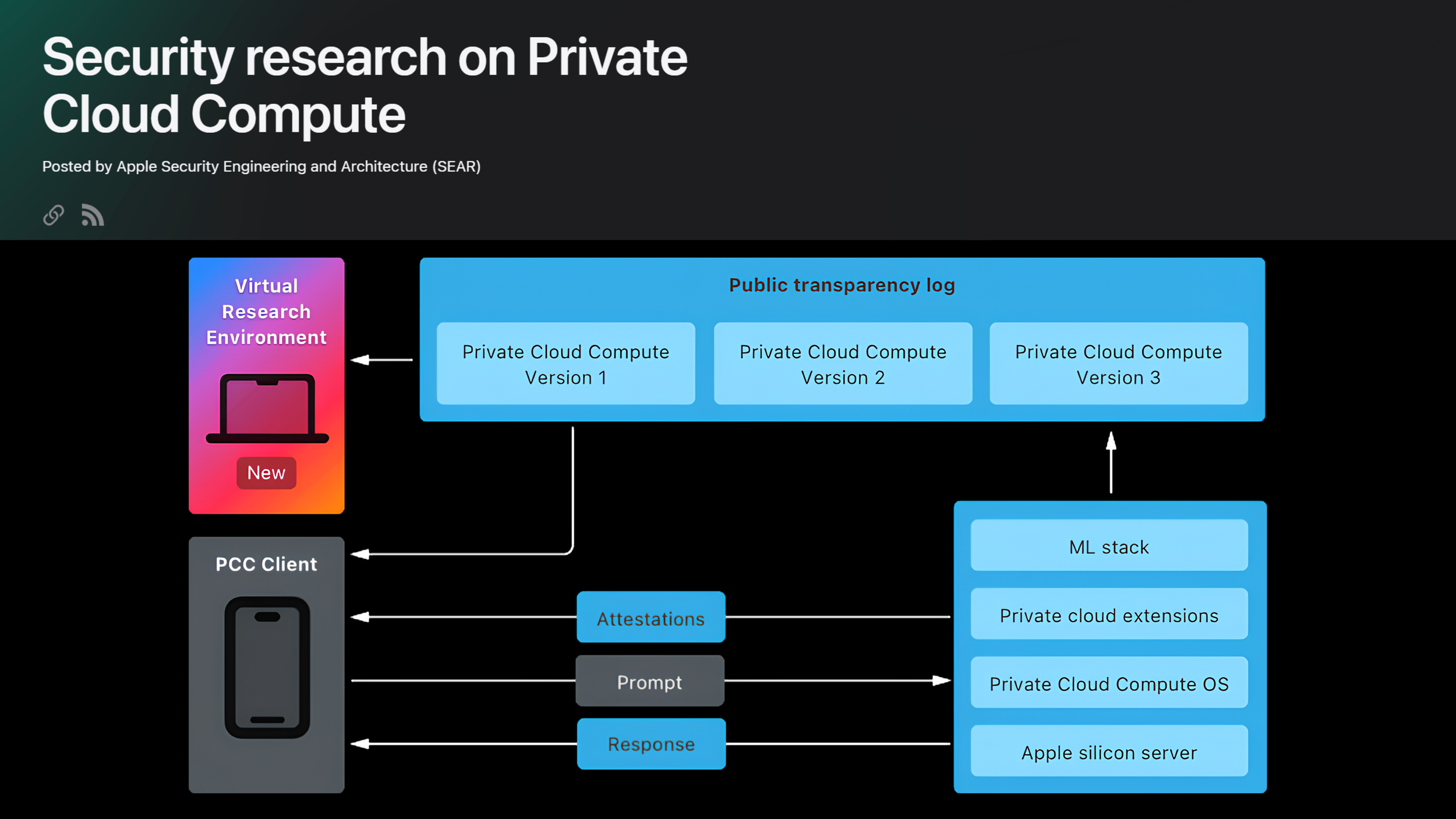
So this isn’t a secret Apple app that escaped onto GitHub. It’s an independent project using Apple technology for a very different experience.
The Bad News, Then the Good News
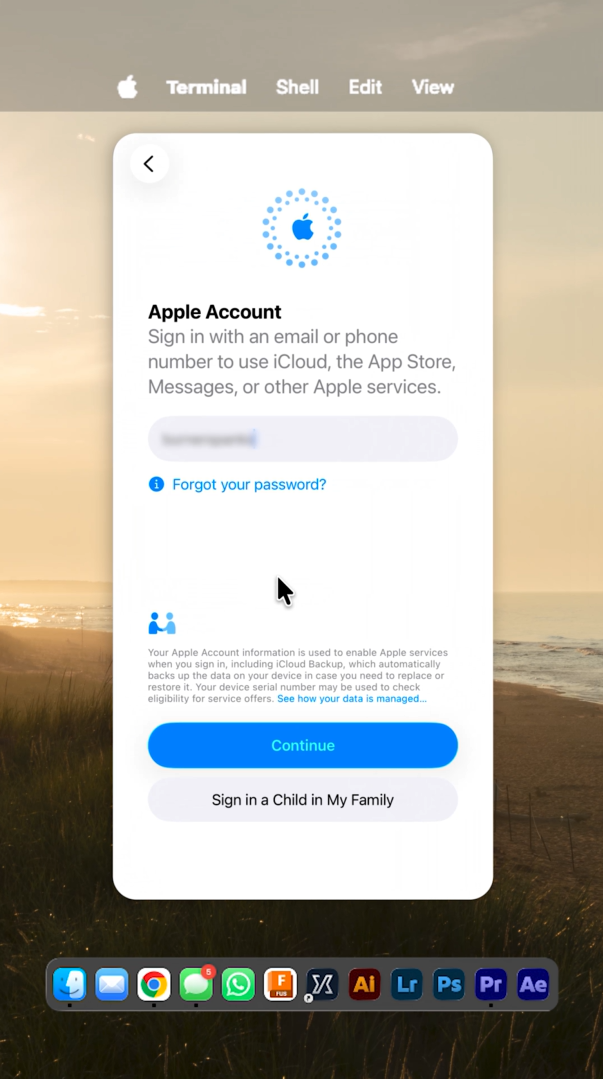
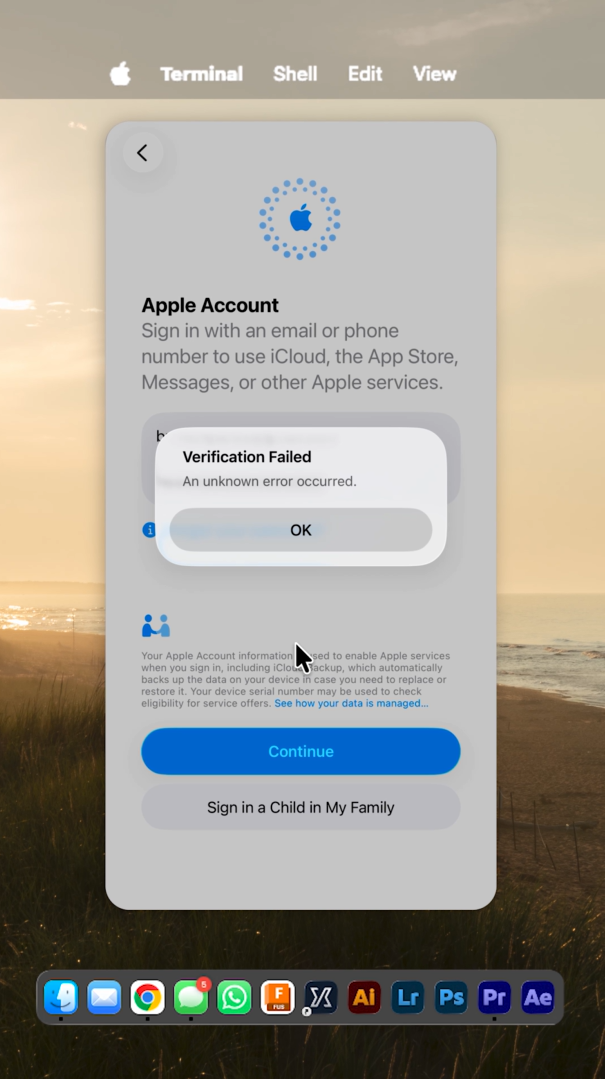
In my setup, I couldn’t sign in to iCloud. That immediately limits how useful this would be as an everyday phone replacement.
But this version comes jailbroken.
Instead of stopping at the home screen, you can dig into the operating system and experiment with changes a normal iPhone would restrict. The project’s jailbreak configuration includes Sileo and TrollStore, with SSH access for working inside the guest system. VPhone documentation.
That doesn’t magically fix iCloud or make every app compatible. It makes VPhone more interesting as a testing environment than as a replacement for the phone in your pocket.
Before You Install It
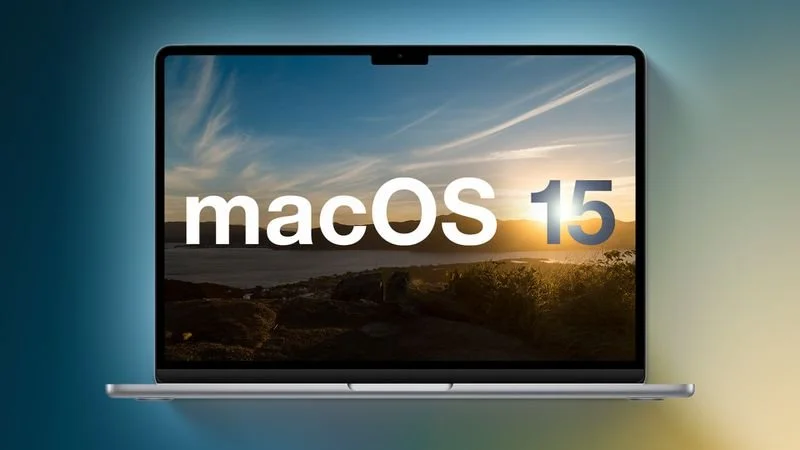
The documented requirements are an Apple Silicon Mac, macOS 15 or newer, full Xcode with the iOS SDK, and Homebrew. Intel Macs and running VPhone inside another virtual machine are not supported.
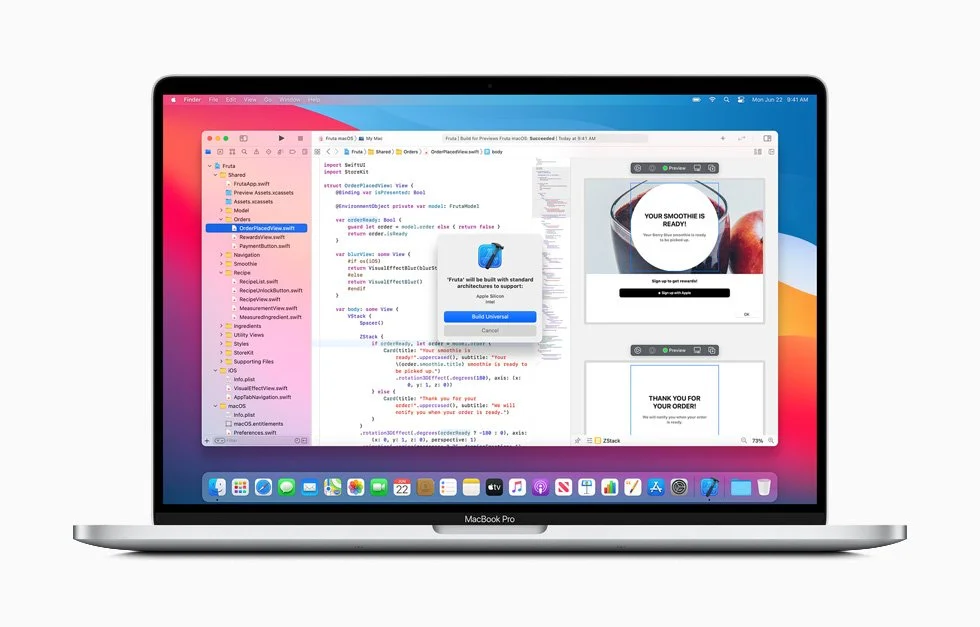


Install Xcode separately and finish its initial setup before continuing. The Homebrew command below is not an Xcode installer.
There’s also a security trade-off: the setup relaxes protections on the Mac itself, not just inside the virtual phone. I’d keep this experiment on a spare testing Mac, with important data backed up.
Installing VPhone
These are the project’s documented commands, not a guarantee of an error-free installation. Check the current setup instructions before changing your Mac’s security settings.
Shut down, hold the power button to reach Startup Options, select Options, and open Terminal in macOS Recovery. For the project’s partially relaxed security configuration, run:
csrutil enable --without debug
csrutil allow-research-guests enablebrew install zqxwce/tap/vphone-clivphone-amfidontvphone-cli vm create myphone -V jbThis command downloads and prepares the necessary firmware, patches the virtual boot process, restores the virtual device, and installs the jailbroken configuration. It may take a while and requires a stable internet connection.
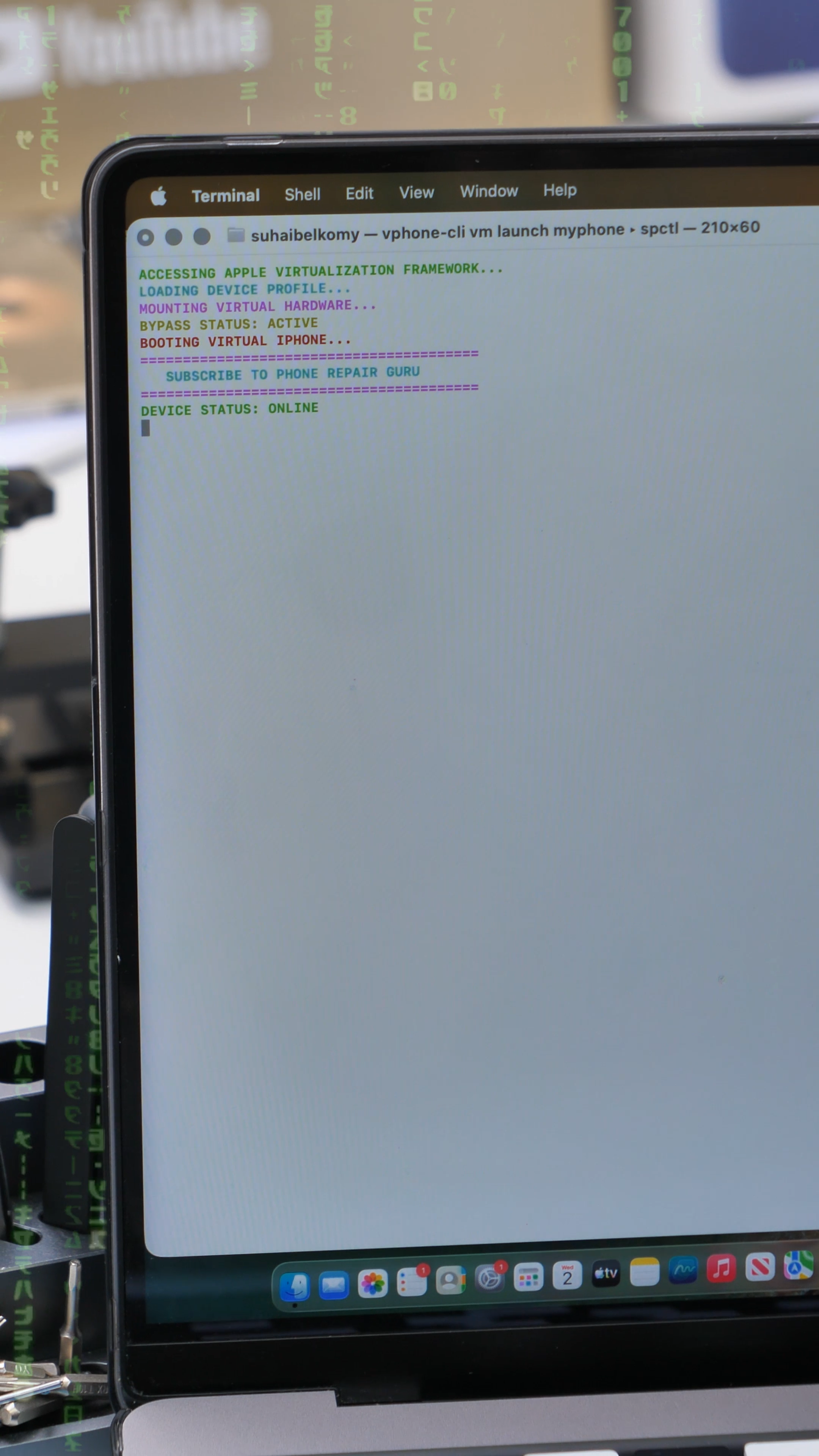
vphone-cli vm launch myphoneThese commands reflect the project’s documentation at the time of writing. Because VPhone is under active development, readers should check its GitHub page for updated requirements before starting.
If a step fails, stop there and check the project’s troubleshooting notes before continuing.
Final Thoughts
I wouldn’t replace my iPhone with this. I’d use it to try the things I wouldn’t want to try on my iPhone.
Most of us use iOS every day without getting much say in what happens underneath it. VPhone gives you room to explore that side of the system, experiment with changes, and see what happens when you have more control.
It still comes with compromises. I couldn’t sign in to iCloud, and the setup requires security changes I wouldn’t casually make on my main Mac. But on a spare machine, this is the kind of project I could easily lose an afternoon to.
There’s no physical iPhone sitting beside the Mac. Somehow, that makes me want to take it apart even more.
See you in the next article!
