
AirPods Pro Whistling or Squealing? What to Check First
If an AirPod suddenly makes a piercing noise, remove it from your ear. Avoid repeatedly recreating the noise while wearing it.
A brief squeal when you cover a microphone and a recurring noise during ordinary listening are two different situations. Neither can be diagnosed from the sound alone.
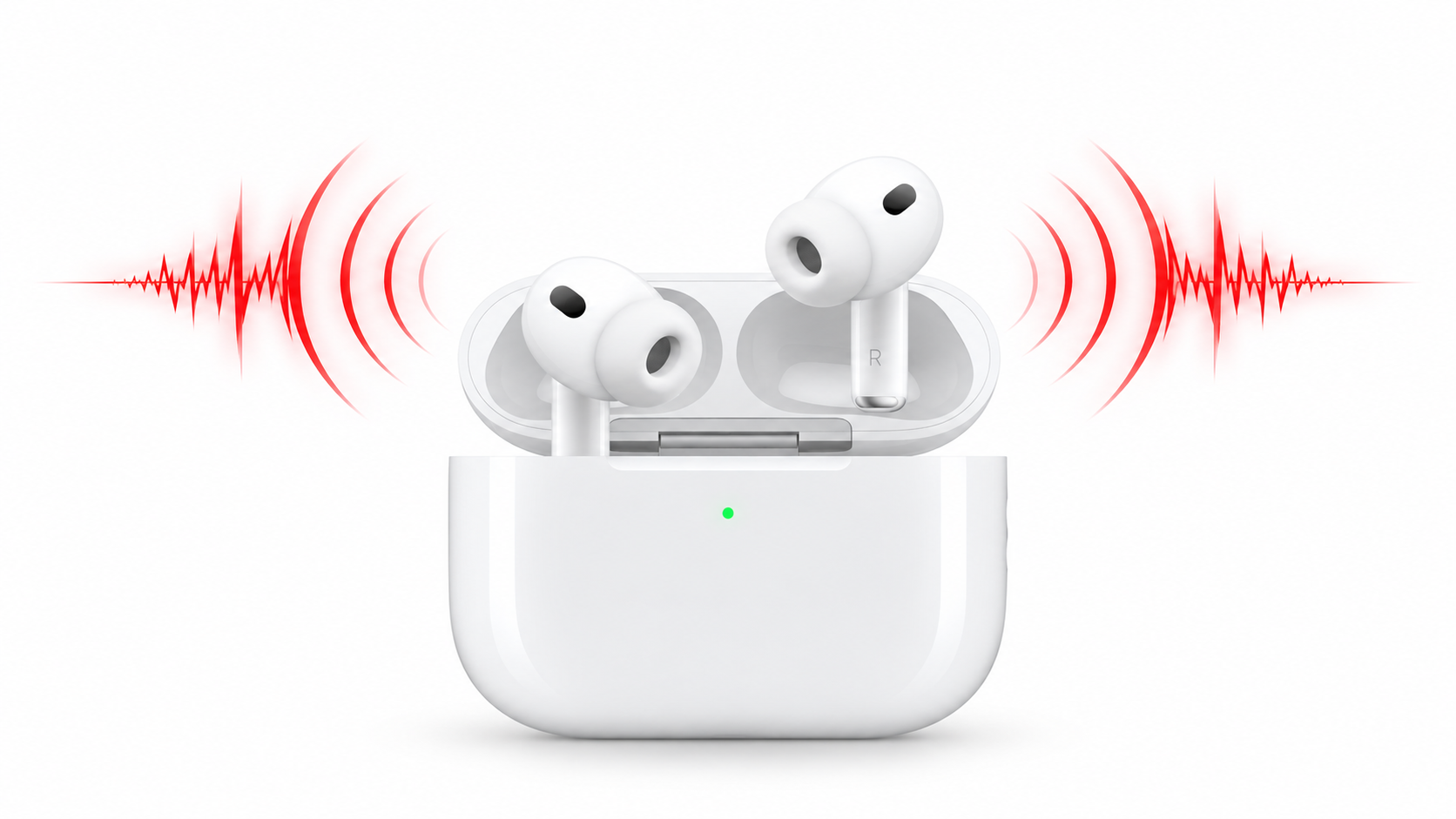
Before assuming the AirPod is broken, there are a few things worth checking. That includes the microphones, ear tip and fit, listening mode, and the correct reset procedure for your AirPods model.
Start With the Microphones
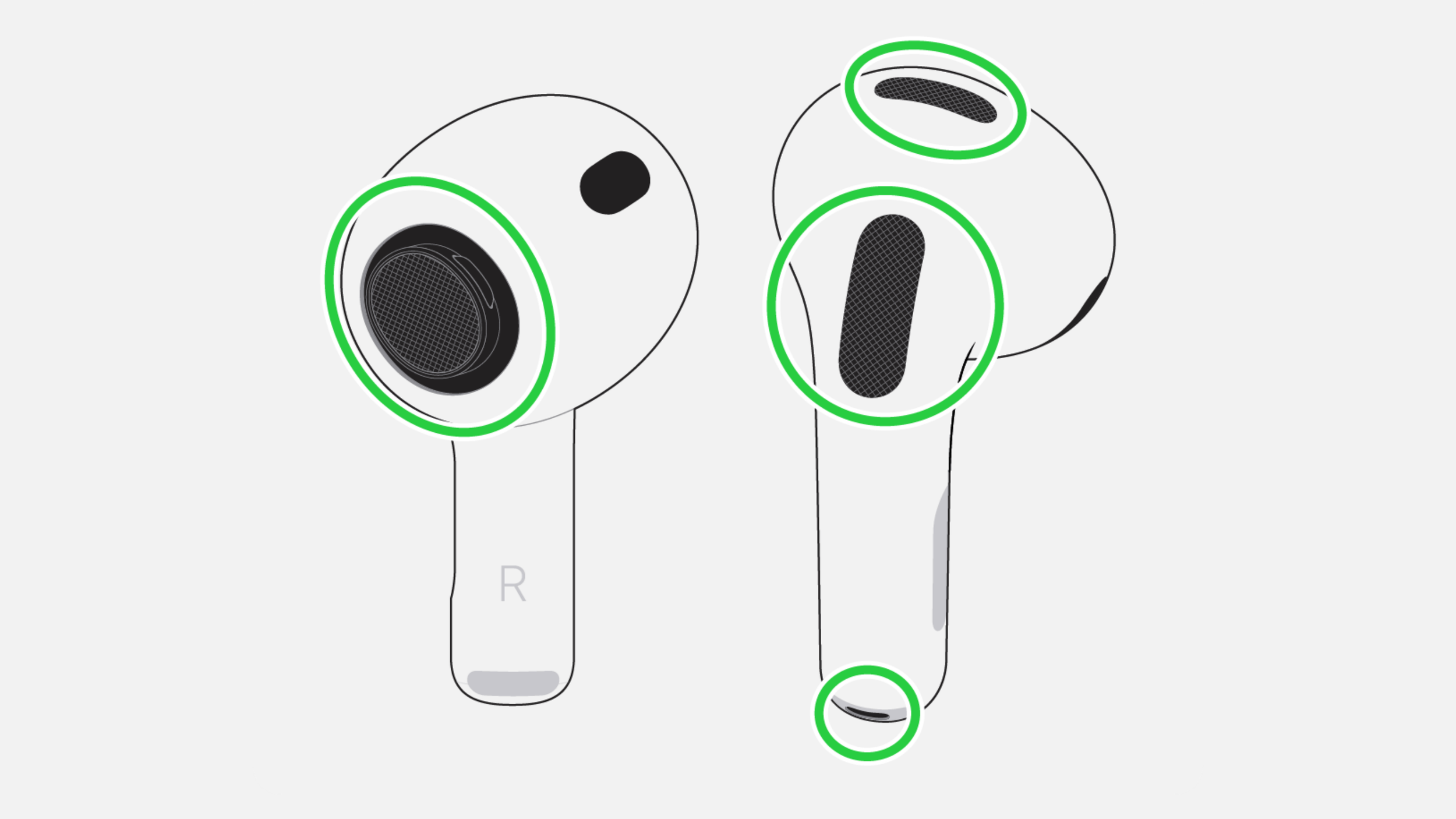
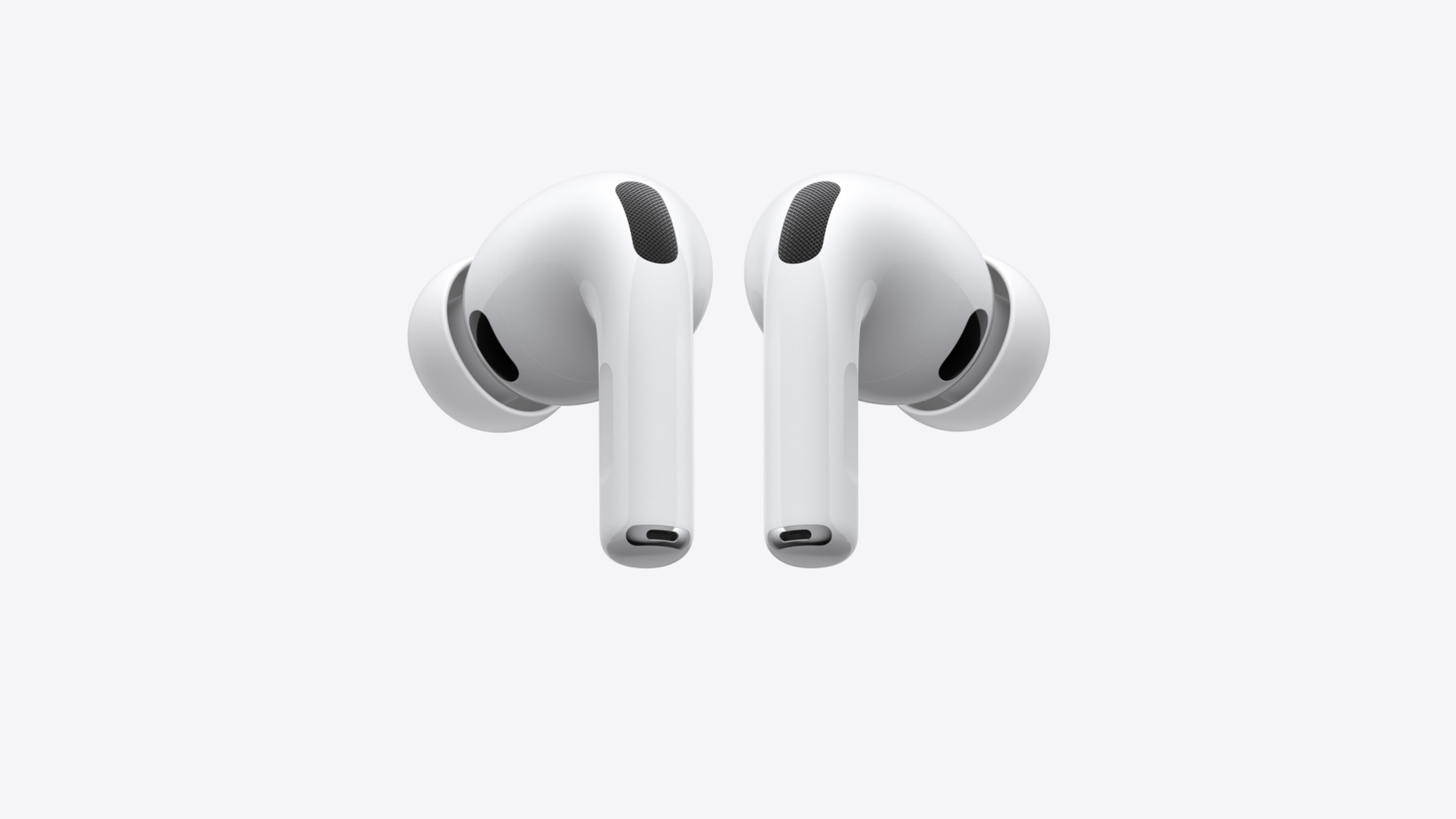
AirPods Pro rely on multiple microphones for features like Active Noise Cancellation and Transparency Mode. If one of those microphones is covered or obstructed, it can affect what you hear.
Check whether your finger, clothing, or anything else is covering part of the AirPod when the noise happens. Also look for visible debris or buildup around the microphone openings.
If the AirPods need cleaning, follow Apple's cleaning instructions for your exact AirPods model. Avoid pushing sharp objects into the mesh or pouring cleaning liquid into the earbud.
Check the Ear Tip and Fit
The silicone ear tip is another simple thing worth checking. Inspect the tip for damage, looseness, or debris and make sure it is properly attached. If the fit doesn't feel right, try another ear tip size.
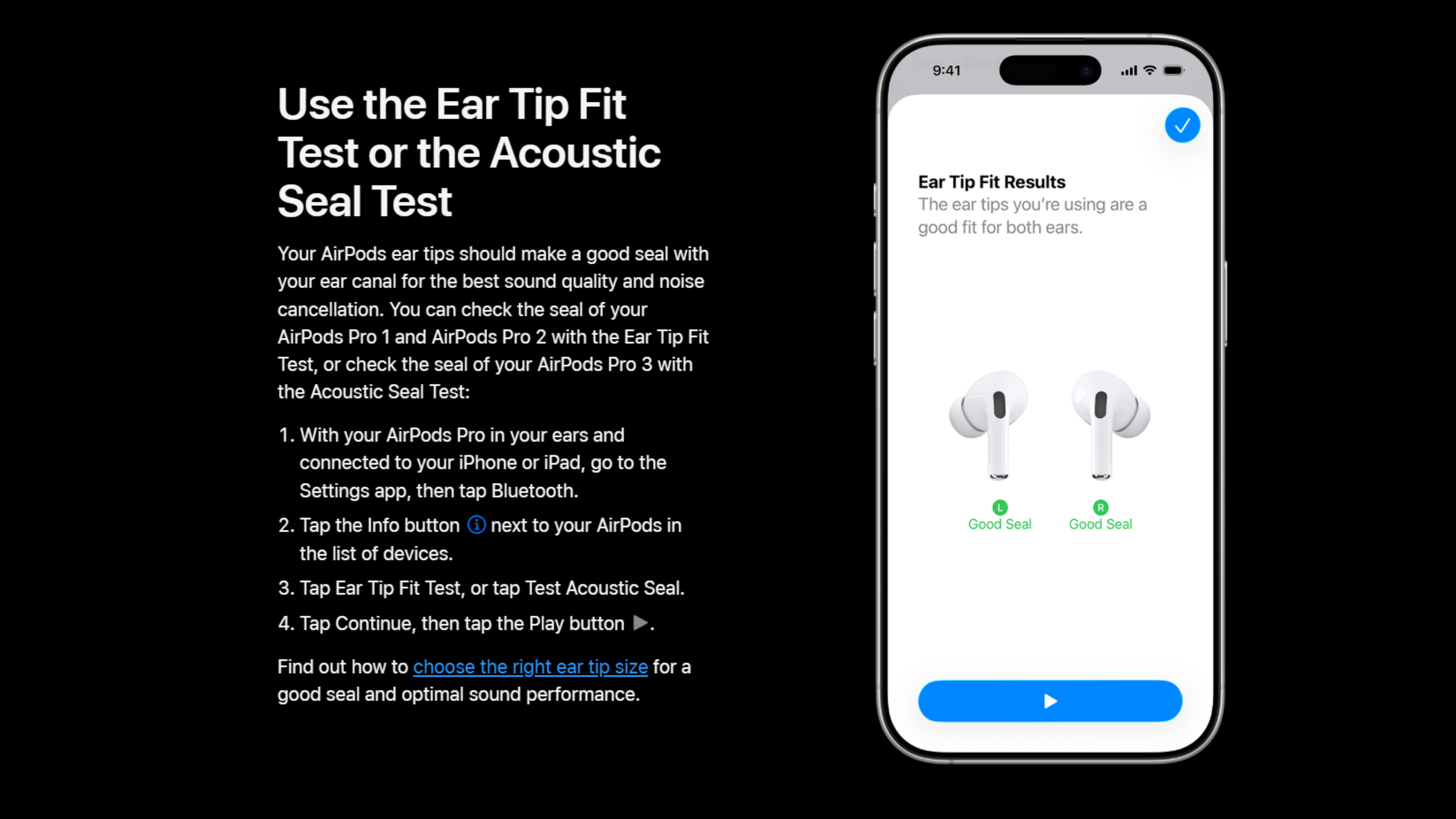
Depending on your AirPods generation, you may also have access to Apple's Ear Tip Fit Test or Acoustic Seal Test. These can help determine whether the AirPods are forming the intended seal in your ears.
Does It Happen With One AirPod or One Listening Mode?
Before resetting anything, try to narrow down exactly when the noise occurs.
Check each AirPod separately to see whether the problem consistently follows the left or right earbud. Then switch between the listening modes available on your AirPods, such as Active Noise Cancellation, Transparency, Adaptive Audio, or Off.
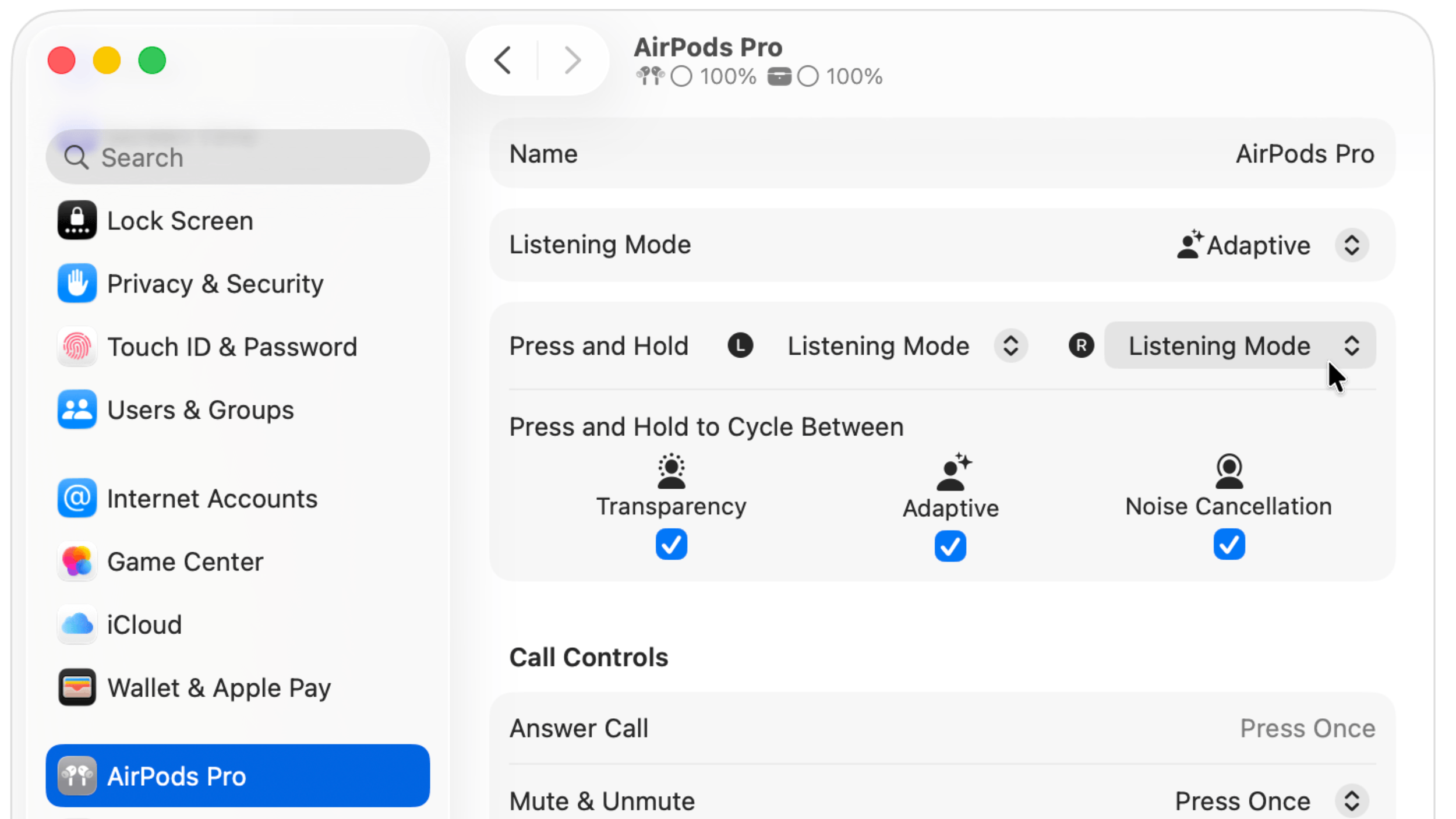
If the squealing consistently comes from the same AirPod or appears with a particular listening mode, make a note of it. That information can also be useful if you eventually need to contact Apple.
Does This Apply to AirPods Pro 3?
Yes, but there is an important difference when it comes to resetting them.
If you're familiar with resetting an older pair of AirPods, don't automatically follow the same procedure. AirPods Pro 3 use a reset sequence involving the front of the charging case rather than the familiar back-case button procedure used with some previous models.
How to Reset AirPods Pro 3
You can follow Apple's illustrated reset instructions to make sure you follow the correct light sequence. Resetting is a troubleshooting step. It isn't a guaranteed fix for a microphone, speaker, or other hardware fault.
What If the Whistling Still Doesn't Stop?
If the noise continues after checking the microphones, cleaning the AirPods, inspecting the fit, testing the listening modes, and resetting them, it may be time to have the affected AirPod assessed.
Check your warranty or AppleCare coverage and contact Apple about your service options. It is also worth asking about the cost of replacing only the affected earbud rather than assuming you need to replace the entire set.

Avoid trying to open the AirPod with a disassembly clamp or pouring cleaning liquid into the earbud in an attempt to stop the squeal. These troubleshooting steps also don't establish that a product from our tool catalog will solve the problem.
Our AirPods Pro 3 Started Whistling Too
We experienced this issue with our own AirPods Pro 3. We covered what happened with that particular pair in a separate firsthand report. This guide is focused on the troubleshooting steps you can take when the same type of noise happens to yours.
Final Thoughts
A quick squeal while touching an AirPod isn't necessarily the same problem as a piercing noise that keeps returning during ordinary use.
Start with the simple checks and make sure you're following the correct reset procedure for your specific model. If the noise keeps coming back, having the affected AirPod assessed is a better next step than trying to open it yourself.
For a more detailed checklist, see our AirPods Pro whistling and squealing troubleshooting guide.
